192.168.1.1 Login Admin – Access Your Router Settings
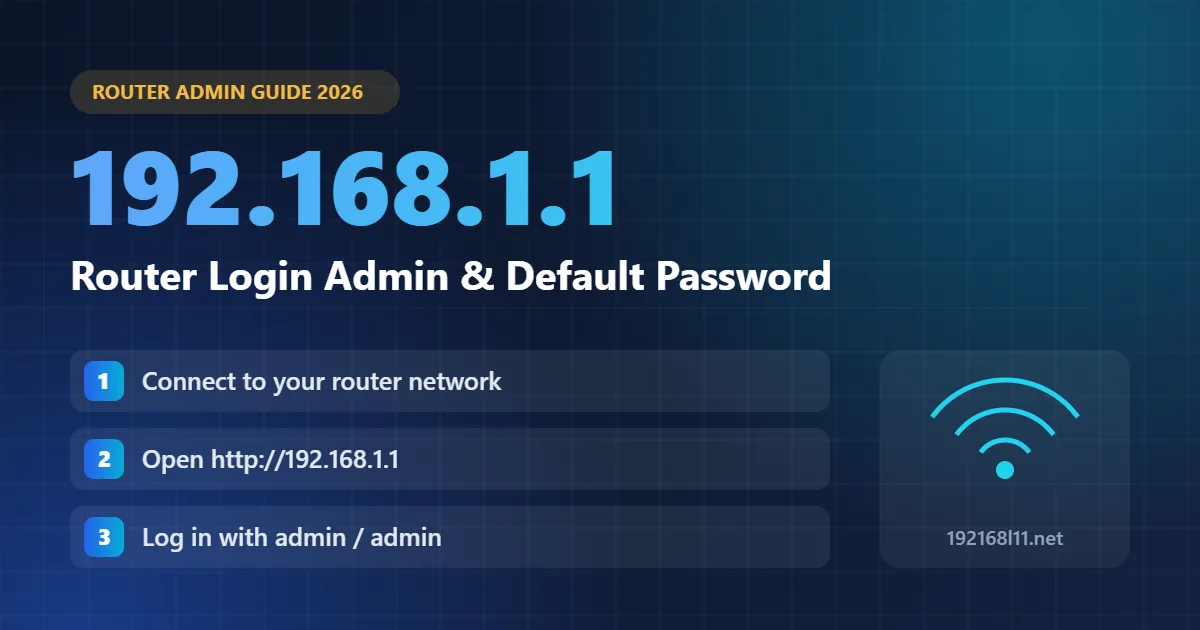
192.168.1.1 is the default IP address that many routers and modems use for their admin login page. Connect to your network, type http://192.168.1.1 into your browser and enter the router’s username and password. From there you can change your Wi-Fi name and password, update firmware, block unknown devices and much more.
This guide shows you how to log in step by step, lists the default router login details for popular brands, and fixes the most common errors. That includes the 192.168.l.1 typo, which stops thousands of people from reaching their router admin page every day.
What Is 192.168.1.1?
192.168.1.1 is a private IP address from the 192.168.0.0 – 192.168.255.255 range. This range is reserved by the internet standard RFC 1918 for local networks, so it is never used by public websites. That is why this address is not a website: it only works on the network your router creates.
Router manufacturers set 192.168.1.1 as the default gateway. Every phone, laptop and smart TV on your network sends its internet traffic through this address. The same address also opens the router’s built-in admin panel, a web page stored on the router itself.
Millions of homes use the same address at the same time without any conflict. Private addresses are not routed on the public internet, so each network keeps its own copy.
How the 192.168.1.x Network Works
- Network address: 192.168.1.0 – identifies the network, not a device.
- Router (gateway): 192.168.1.1 – the first usable address, given to the router.
- Your devices: 192.168.1.2 to 192.168.1.254 – assigned automatically by the router’s DHCP server (for example, your laptop may get 192.168.1.101).
- Broadcast address: 192.168.1.255 – used to message every device at once.
- Subnet mask: 255.255.255.0, written as /24, which gives 254 usable addresses.
If your router uses a different address, such as 192.168.0.1 or 10.0.0.1, the same rules apply with different numbers. See the table of other router IPs further down this page.
How to Log In to 192.168.1.1 (Router Login Steps)
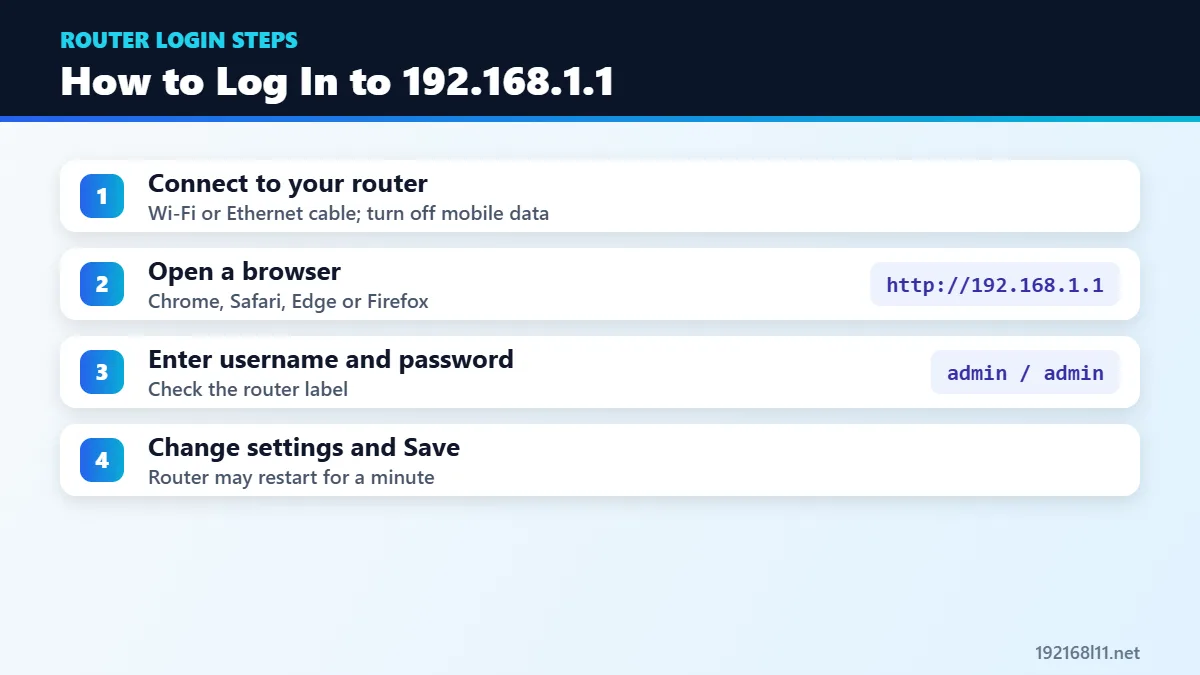
You can open the router login page from any computer, tablet or phone connected to your network. Follow these six steps:
- Connect to your router. Join its Wi-Fi network or plug in an Ethernet cable. On a phone, turn off mobile data so the page loads over Wi-Fi.
- Open a web browser. Chrome, Safari, Edge and Firefox all work.
- Type
http://192.168.1.1in the address bar. Use the address bar at the top, not the Google search box. If you see search results instead of a login page, you typed it in the wrong place. - Enter the username and password. Use the details printed on the sticker under your router, or try the defaults in the table below. If you set your own password before, use that.
- Open the admin dashboard. You will see menus such as Wireless, Security, LAN, DHCP and Advanced.
- Make your changes and click Save or Apply. The router may restart for a minute, and Wi-Fi devices will reconnect on their own.
192.168.1.1 Login on a Phone (Android and iPhone)
- Open Settings > Wi-Fi and connect to your router’s network.
- Turn off mobile data.
- Open Chrome or Safari and type your router IP in the address bar.
- Enter the admin username and password, then tap Login.
Many brands also offer a free app that does the same job with a simpler screen, such as TP-Link Tether, Netgear Nighthawk, Linksys and ASUS Router.
Default Router Username and Password List
Most routers ship with a standard login. Find your brand below. Newer models often use a unique password printed on the router label instead, so check the sticker first.
| Router brand | Default login IP | Username | Password |
|---|---|---|---|
| TP-Link | 192.168.0.1, 192.168.1.1 or tplinkwifi.net | admin | admin (newer models ask you to create one) |
| Netgear | 192.168.1.1 or routerlogin.net | admin | password |
| Linksys | 192.168.1.1 | admin (or blank) | admin |
| ASUS | 192.168.1.1, 192.168.50.1 or router.asus.com | admin | admin |
| D-Link | 192.168.0.1 or 192.168.1.1 | admin | (blank) |
| Huawei | 192.168.1.1, 192.168.3.1 or 192.168.8.1 | admin | admin or on the label |
| ZTE | 192.168.1.1 | admin | admin |
| Zyxel | 192.168.1.1 | admin | 1234 |
| Cisco | 192.168.1.1 | cisco or admin | cisco or admin |
| Verizon Fios | 192.168.1.1 or mynetworksettings.com | admin | printed on the router label |
| Tenda | 192.168.0.1 or tendawifi.com | admin | admin |
| Belkin | 192.168.2.1 | admin | (blank) |
None of these working? Someone has probably changed the password. Reset the router to factory settings and the default login will work again. For 25+ more brands, see our full default router password list.
192.168.1.1 Not Working? How to Fix It
If 192.168.1.1 shows “This site can’t be reached” or keeps loading, work through these fixes in order. Most problems are solved by the first three.
1. Check You Are on the Right Network
The login page only opens from inside your network. Make sure you are on your router’s Wi-Fi, not a guest network, a neighbour’s Wi-Fi or mobile data.
2. Type the Address Correctly
Type http://192.168.1.1 exactly. Do not add “www” (www.192.168.1.1 will never load). If the https:// version shows a security warning, that is normal for a home router; use the http:// version instead.
3. Use the Address Bar, Not the Search Box
Typing the IP into Google returns search results, not your router. Click the address bar at the very top of the browser and type it there.
4. Your Router May Use a Different IP
Not every router uses this address. Many use 192.168.0.1, 10.0.0.1 or 192.168.100.1. Find your exact address with the steps in the next section.
5. Restart Your Router and Device
Unplug the router, wait 30 seconds and plug it back in. Restart your computer or phone too, then try again after two minutes.
6. Clear Your Browser or Try Another One
Open a private (incognito) window, clear your browser cache, or switch browsers. Turn off any VPN or proxy, since they send traffic away from your local network.
7. Ping Your Router to Test the Connection
On Windows, open Command Prompt and type ping 192.168.1.1. If you get replies, the router is reachable and the problem is in your browser. If you see “Request timed out”, the IP is wrong or you are not connected.
8. Connect With an Ethernet Cable
Some routers block the admin page over Wi-Fi or on guest networks. Plug a laptop into one of the router’s LAN ports and try again.
192.168.l.1 and Other Common Typos
The most common reason the login page fails is a simple typo. An IP address contains only numbers (0–255) and dots. The lowercase letter “l” looks like the number “1”, so 192.168.l.1 is searched over 100,000 times a month in the US alone, yet it will never open a router.
| What people type | Problem |
|---|---|
| 192.168.l.1 or 192.168.l.l | Letter “l” instead of number “1” |
| 192 l.168.1.1 or 192.l68.1.1 | Letter “l” and extra space |
| http //192.168.l.1 | Missing colon and letter “l” |
| 192.168.1.1. | Extra dot at the end |
| 192,168.1.1 | Comma instead of dot |
| 192.168.1.0.1 or 192.168.l.1.1 | Five number groups instead of four |
| 1921681.1 or 192168.1.1 | Missing dots |
| 198.168.1.1 | 198 instead of 192 |
| www.192.168.1.1 | “www” added |
In every case the fix is the same: type the address with numbers and dots only, as http://192.168.1.1, in the browser address bar.
How to Find Your Router’s IP Address
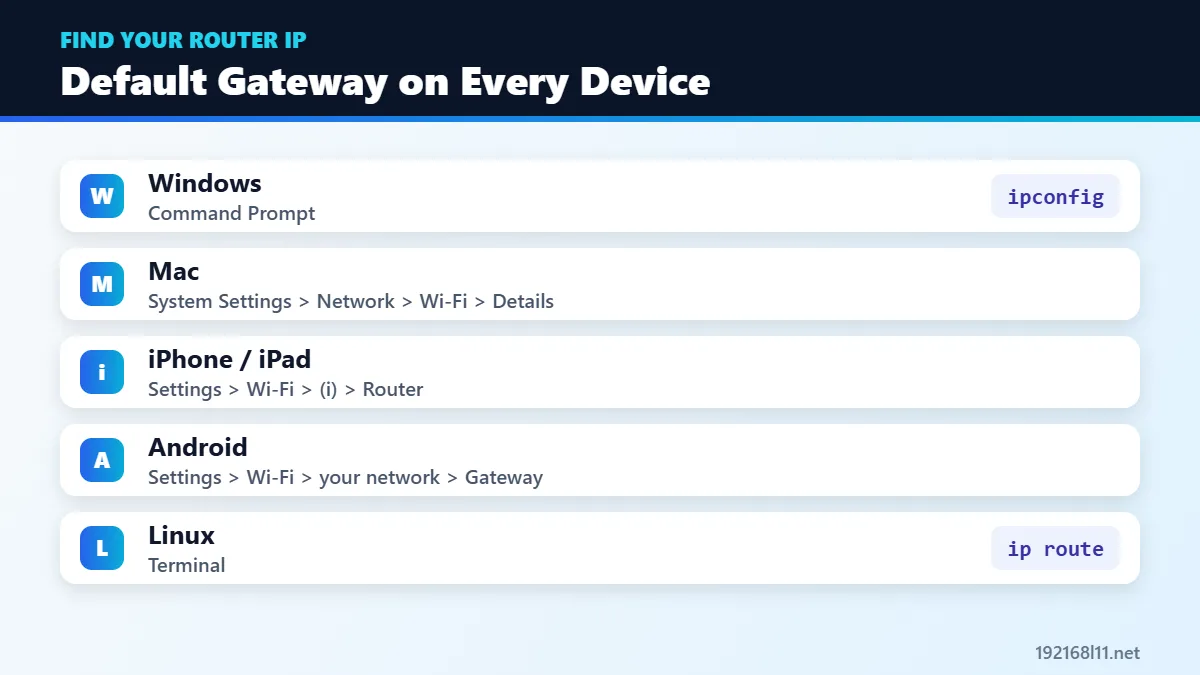
Your router’s IP is listed as the Default Gateway (or “Router”) in your device’s network settings. It is also printed on the label under most routers.
- Windows: Press Windows + R, type cmd, press Enter, then type
ipconfig. Look for “Default Gateway”. - Mac: Open System Settings > Network > Wi-Fi > Details > TCP/IP. The address next to “Router” is your gateway.
- iPhone and iPad: Go to Settings > Wi-Fi and tap the (i) next to your network. Scroll down to “Router”.
- Android: Go to Settings > Wi-Fi (or Network & internet), tap your network, and look for “Gateway” or “Router”. Menu names vary by phone brand.
- Linux: Open Terminal and type
ip route | grep default.
What You Can Do in the Router Admin Panel
Once you are logged in to the router admin page, you control your whole home network. The most useful settings are:
- Wi-Fi name (SSID) and password – rename your network and set a strong password.
- Security mode – choose WPA2 or WPA3 encryption.
- Connected devices – see who is on your Wi-Fi and block unknown devices.
- Guest network – give visitors internet access without access to your devices.
- Parental controls – block websites or set internet schedules for kids.
- Firmware update – install security fixes from the manufacturer.
- DHCP and static IP – control which addresses your devices get.
- Port forwarding and DNS – settings for gaming, cameras and faster browsing.
- Admin password – change the router login itself, not just the Wi-Fi.
How to Change Your Wi-Fi Password Through 192.168.1.1
- Log in at
http://192.168.1.1. - Open the Wireless, Wi-Fi or WLAN menu. On TP-Link it is Wireless > Wireless Security; on ASUS it is Wireless > General.
- Find the field named Password, Passphrase, WPA Key or Pre-Shared Key.
- Type a new password of at least 12 characters, mixing letters, numbers and symbols.
- Set the security type to WPA2-PSK (AES) or WPA3.
- Click Save or Apply. Every device will disconnect; reconnect them with the new password.
How to Change the Wi-Fi Password on Mobile
The steps are the same on a phone. Connect to your Wi-Fi, open Chrome or Safari, open your router IP, log in, and edit the password under the Wireless menu. Your router brand’s app is often even faster. For brand-by-brand menu paths, read our full guide on how to change your WiFi password.
How to Reset Your Router to Factory Settings
A factory reset brings back the default username and password if you have forgotten them. It also erases every setting you made.
- Keep the router switched on.
- Find the small Reset hole on the back of the router.
- Press and hold it with a paperclip for 10–30 seconds, until the lights flash.
- Release it and wait 2–3 minutes while the router restarts.
- Log in again with the default details on the router label.
Before you reset, note your internet provider’s login details (often a PPPoE username and password). Fibre and DSL connections need them again to get back online.
Secure Your Router After You Log In
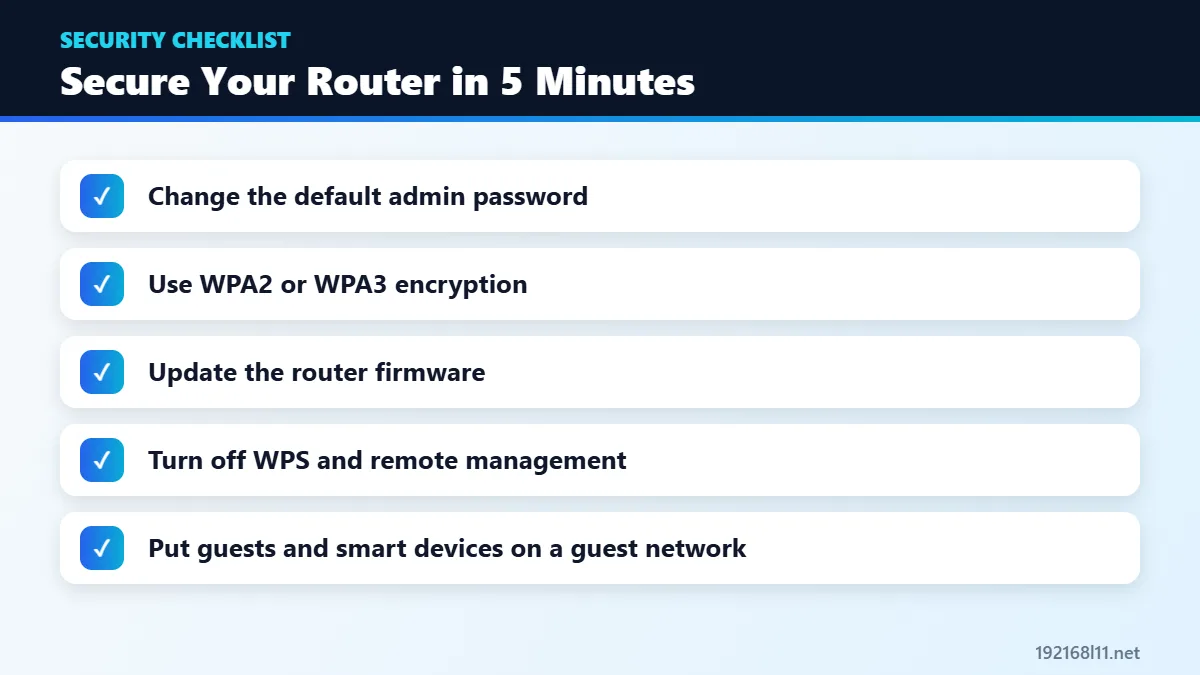
A router left on its default settings is easy to break into. Spend five minutes on this checklist:
- Change the default admin password to a unique one.
- Use WPA2 or WPA3 encryption, never WEP or an open network.
- Update the router firmware, or turn on automatic updates.
- Turn off WPS, which can be cracked.
- Turn off remote management, so the admin page only opens from inside your home.
- Rename the Wi-Fi network without using your name or address.
- Put smart TVs, cameras and visitors on the guest network.
- Check the connected devices list once a month.
192.168.1.1 vs Other Common Router IP Addresses
If this address does not open your router, it probably uses one of these addresses instead.
| Router IP | Commonly used by |
|---|---|
| 192.168.1.1 | Linksys, ASUS, Netgear, Huawei, ZTE, Zyxel, Verizon Fios |
| 192.168.0.1 | TP-Link, D-Link, Tenda, some Netgear models |
| 10.0.0.1 | Xfinity (Comcast) gateways |
| 192.168.1.254 | AT&T gateways, BT Hub |
| 192.168.100.1 | Cable modems such as ARRIS SURFboard |
| 192.168.2.1 | Belkin, Telekom Speedport |
| 192.168.8.1 | Huawei 4G and mobile Wi-Fi routers |
| 192.168.31.1 | Xiaomi routers |
| 192.168.88.1 | MikroTik routers |
Router Terms Explained
New to router settings? These are the terms you will see most often in the admin panel.
- Default gateway: the address your devices send internet traffic to. On most home networks it is the router itself.
- Admin panel: the settings website built into your router. You open it from a browser on your own network.
- SSID: the name of your Wi-Fi network, shown in the list of networks on your phone or laptop.
- WPA2 and WPA3: the encryption standards that protect your Wi-Fi traffic. WPA3 is newer and stronger; WPA2-AES is still safe with a long password.
- DHCP: the router feature that hands out local addresses to every device automatically, so you never have to set them by hand.
- Subnet mask: a number such as 255.255.255.0 that tells devices which addresses belong to the local network.
- Firmware: the router’s built-in software. Updates fix security holes and bugs, so install them whenever your router offers one.
- Port forwarding: a rule that sends traffic from the internet to one device at home, used for game consoles, servers and security cameras.
- PPPoE: a login method used by many DSL and fibre providers. Your router stores the username and password the provider gave you.
- Factory reset: returning the router to the settings it had when it left the factory, including the default admin login.
192.168.1.1 FAQs
What is the default password for 192.168.1.1?
The most common default is username admin and password admin. Netgear uses password, and many new routers print a unique password on the label. Check the sticker on your router first.
Why does 192.168.1.1 say “This site can’t be reached”?
You are either not connected to the router’s network, typed the address wrong, or your router uses a different IP. Check your Wi-Fi connection, type the router IP in the address bar, and confirm your Default Gateway.
Is 192.168.l.1 the same as 192.168.1.1?
No. 192.168.l.1 uses the letter “l” instead of the number “1”, so it is not a valid IP address and will not load. Always type the address with numbers only.
Can I access 192.168.1.1 from outside my home?
Not by default. The address only works inside your local network. Some routers offer remote management, but it is safer to keep it off and use the brand’s official app instead.
I forgot my router admin password. What now?
Hold the Reset button for 10–30 seconds to restore factory settings. You can then log in with the default username and password on the router label.
What does /24 mean in 192.168.1.1/24?
/24 means the first 24 bits (192.168.1) identify the network. It equals the subnet mask 255.255.255.0 and allows 254 devices, from .1 to .254.
Is 192.168.1.1 a valid IPv4 address?
Yes. It is a valid private IPv4 address under RFC 1918. It works on local networks but is never used on the public internet.
Why does my browser say “Not secure” on 192.168.1.1?
Most routers serve the admin page over plain HTTP. On your own home network this is normal and safe, as long as you are on a network you trust.
Can I change my router’s IP from 192.168.1.1?
Yes. Open the LAN settings in the admin panel, enter a new address such as 192.168.10.1, and save. After the restart, log in using the new IP.
Start Managing Your Router Today
192.168.1.1 is the gateway to every setting on your home network. Log in, change the default password, secure your Wi-Fi with WPA2 or WPA3, and keep your firmware updated. If the page will not open, check for typos like 192.168.l.1 and confirm your router’s IP address using the steps above.
Ready to Log In to Your Router?
Connect to your Wi-Fi, open the admin page and change the default password in under five minutes.