How to Change WiFi Password: Router, Mobile and Brand Steps
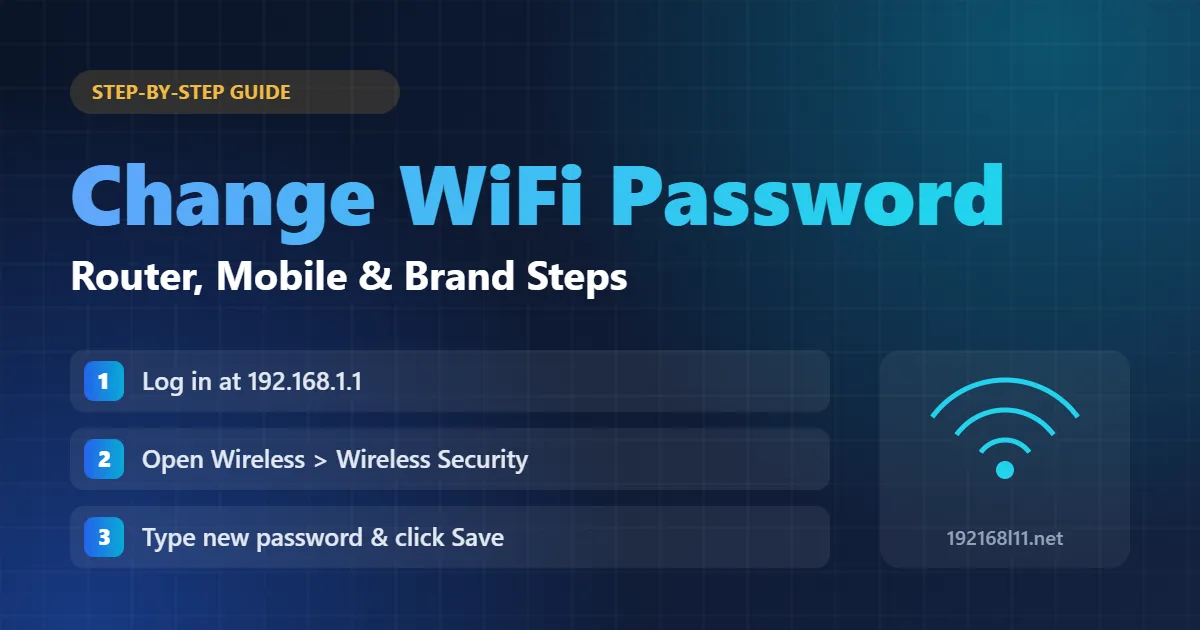
To change your WiFi password, log in to your router at 192.168.1.1 (or 192.168.0.1), open the Wireless Security settings, type a new password and click Save. The whole job takes about five minutes and works the same way on almost every router.
This guide shows you how to change your WiFi password from a computer or a mobile phone, gives the exact menu path for popular router brands, and explains what to do if you have forgotten the router login.
Quick Steps
- Connect to your WiFi network.
- Open a browser and go to 192.168.1.1.
- Log in with the router’s admin username and password.
- Open Wireless > Wireless Security.
- Type a new password in the Password or WPA Key field.
- Click Save and reconnect your devices.
What You Need Before You Start
- Your router’s IP address. Most routers use 192.168.1.1, 192.168.0.1 or 10.0.0.1. It is printed on the router label.
- The router admin login. This is different from your WiFi password. Check the label or our default router password list.
- A connected device. Use a laptop, PC or phone that is already on your WiFi or plugged in with a cable.
Changing the password disconnects every device on your network. Keep the new password handy so you can reconnect them straight away.
How to Change WiFi Password on Your Router (Step by Step)
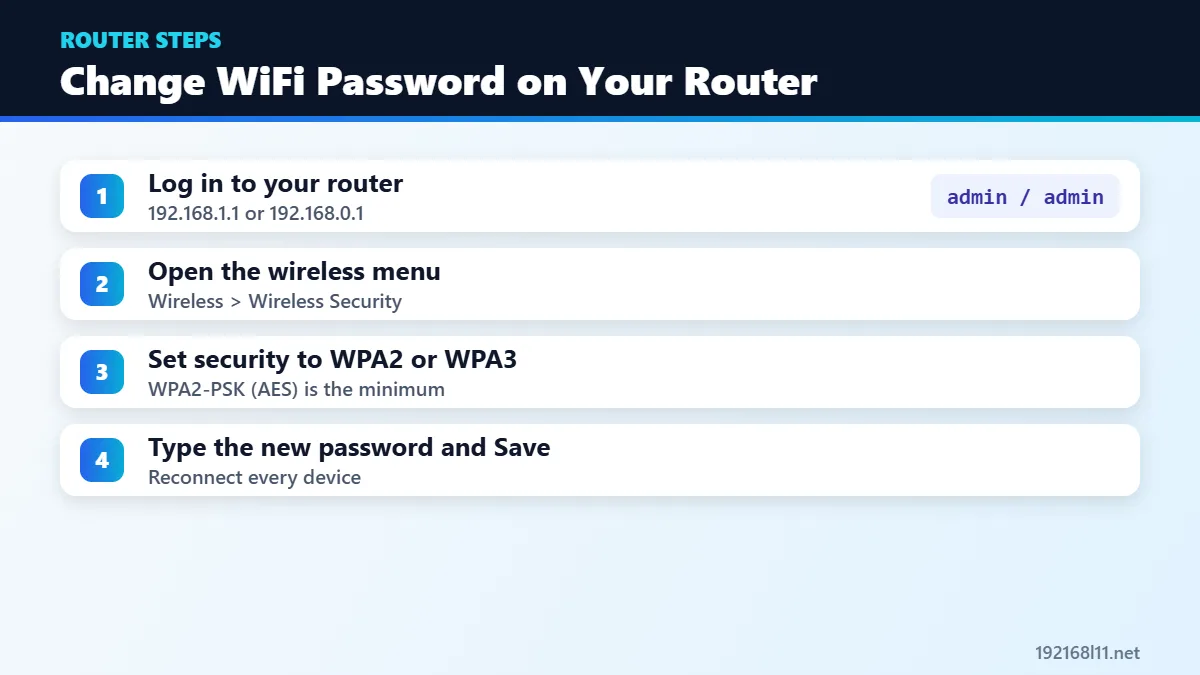
- Connect to your network by WiFi or an Ethernet cable.
- Open a web browser and type your router IP, such as
http://192.168.1.1, in the address bar. - Log in with the admin username and password. Common defaults are admin / admin.
- Find the wireless menu. It is usually called Wireless, WiFi, WLAN or Wireless Settings.
- Open the security section. Look for Wireless Security, Security Options or WiFi Password.
- Set the security mode to WPA2-PSK (AES) or WPA3 if your router offers it.
- Enter your new password in the field named Password, Passphrase, WPA Key or Pre-Shared Key.
- Click Save or Apply. The router may restart its WiFi for a few seconds.
- Reconnect your devices using the new password.
If your router has separate 2.4 GHz and 5 GHz networks, change the password on both bands.
How to Change WiFi Password From Mobile (Android and iPhone)
You do not need a computer. There are two easy ways to change your WiFi password on a phone.
Method 1: Using Your Phone’s Browser
- Connect your phone to the WiFi network and turn off mobile data.
- Open Chrome or Safari and type 192.168.1.1 (or your router IP) in the address bar.
- Log in, then tap the menu icon if the page looks small.
- Go to the Wireless or WiFi settings, enter the new password and tap Save.
Method 2: Using Your Router’s App
Most brands have a free app that makes this even easier: TP-Link Tether or Deco, Netgear Nighthawk or Orbi, Linksys, ASUS Router, Huawei AI Life, and the Xfinity app. Open the app, tap your WiFi network and choose Edit or Password.
How to Change WiFi Password by Router Brand
Menu names change with each firmware version, so use these paths as a guide.
| Brand | Login address | Where to change the WiFi password |
|---|---|---|
| TP-Link | 192.168.0.1 or tplinkwifi.net | Wireless > Wireless Security (older) or Advanced > Wireless > Wireless Settings (newer) |
| Netgear | 192.168.1.1 or routerlogin.net | Basic > Wireless |
| D-Link | 192.168.0.1 | Setup > Wireless Settings |
| ASUS | 192.168.1.1 or router.asus.com | Wireless > General > WPA Pre-Shared Key |
| Linksys | 192.168.1.1 | Wireless > Wireless Security, or WiFi Settings on newer models |
| Huawei | 192.168.1.1, 192.168.3.1 or 192.168.8.1 | WiFi Settings, or WLAN > WLAN Basic |
| ZTE | 192.168.1.1 | Network > WLAN > Security |
| Tenda | 192.168.0.1 or tendawifi.com | WiFi Settings > WiFi Name & Password |
| Xfinity | Xfinity app or 10.0.0.1 | App: WiFi > your network > Edit; Web: Gateway > Connection > Wi-Fi |
| Verizon Fios | My Fios app or 192.168.1.1 | Wireless Settings > Basic Security Settings |
Using a fiber ONT or PTCL router? See the steps for 192.168.100.1 (Huawei ONT) and 192.168.10.1 (PTCL). AT&T and BT users can change it at 192.168.1.254.
How to Change Your WiFi Name (SSID)
Your WiFi name is set on the same screen as the password. Find the field called Network Name or SSID, type a new name and click Save. Avoid using your name, address or router model, because it tells strangers who owns the network.
How to Choose a Strong WiFi Password
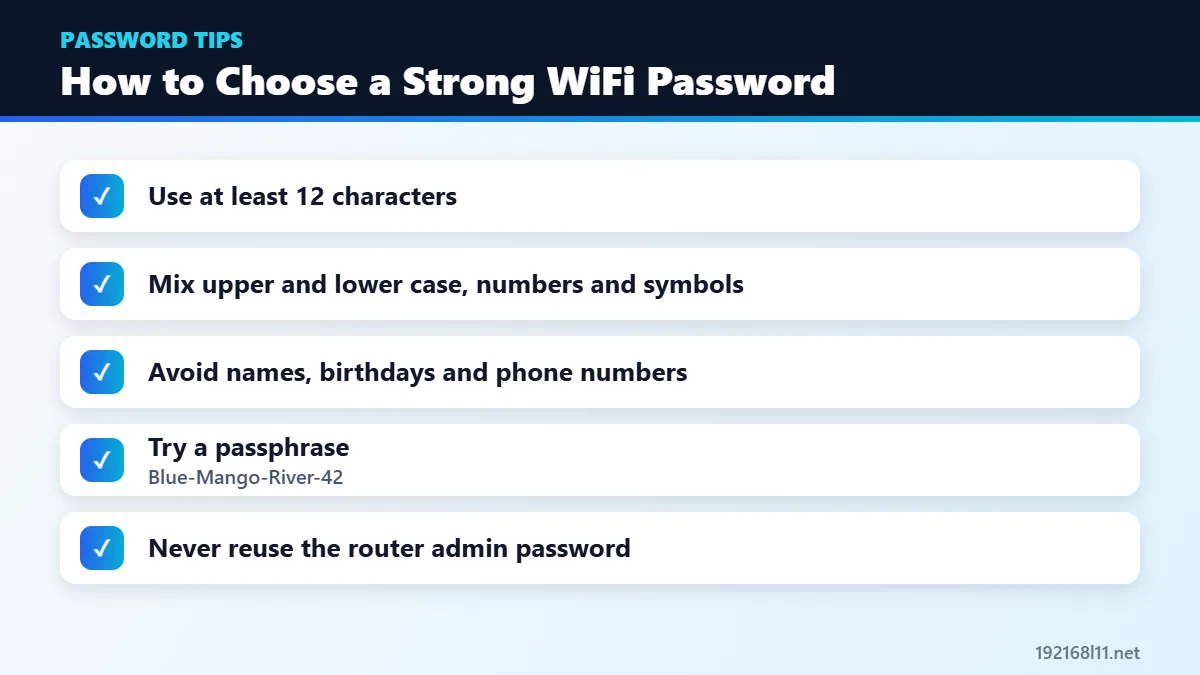
- Use at least 12 characters.
- Mix upper and lower case letters, numbers and symbols.
- Avoid names, birthdays, phone numbers and words like “password”.
- Try a passphrase such as
Blue-Mango-River-42, which is long but easy to remember. - Never reuse the router admin password as the WiFi password.
Forgot Your Router Password? Reset the Router
If you cannot log in to change the WiFi password, reset the router to factory settings. Press and hold the small Reset button on the back for 10–30 seconds, until the lights flash. After it restarts, log in with the default details on the label and set a new WiFi password.
A reset erases all settings, including your internet provider’s login. Note those details before you press the button.
What to Do After Changing Your WiFi Password
- Reconnect phones and laptops: tap the network name and enter the new password. If it fails, choose Forget this network first.
- Reconnect smart devices such as TVs, speakers, cameras and printers through their own settings or apps.
- Change the router admin password too, if it is still the default.
- Check the connected devices list and block anything you do not recognise.
FAQs
Can I change my WiFi password myself?
Yes. Anyone with the router admin login can change it in a few minutes from a computer or phone. You do not need to call your internet provider.
How do I change my 192.168.1.1 password on WiFi?
Go to 192.168.1.1 in your browser, log in, open the Wireless Security menu, enter the new password and click Save.
Can I change my WiFi password online?
Yes, if your router or internet provider has an app or online account, such as the Xfinity app, My Fios or TP-Link Tether. Otherwise you must be connected to the network.
Will changing my WiFi password disconnect everyone?
Yes. Every device is disconnected and must reconnect with the new password. This is also the quickest way to remove people using your WiFi without permission.
How often should I change my WiFi password?
Change it if you shared it with too many people, see unknown devices, or are still using the default. Otherwise, a strong password does not need frequent changes.
What is the difference between the WiFi password and the router password?
The WiFi password connects devices to your network. The router (admin) password opens the router settings at 192.168.1.1. They should be different.
Secure Your WiFi in 5 Minutes
Log in to your router, set a strong WPA2 or WPA3 password and keep strangers off your network.